
The two cards look redundant. Both say “Alex Morgan.” One has a work email, the other a mobile number. Combining them would make the contact list tidier. It could also give one person another person’s history.
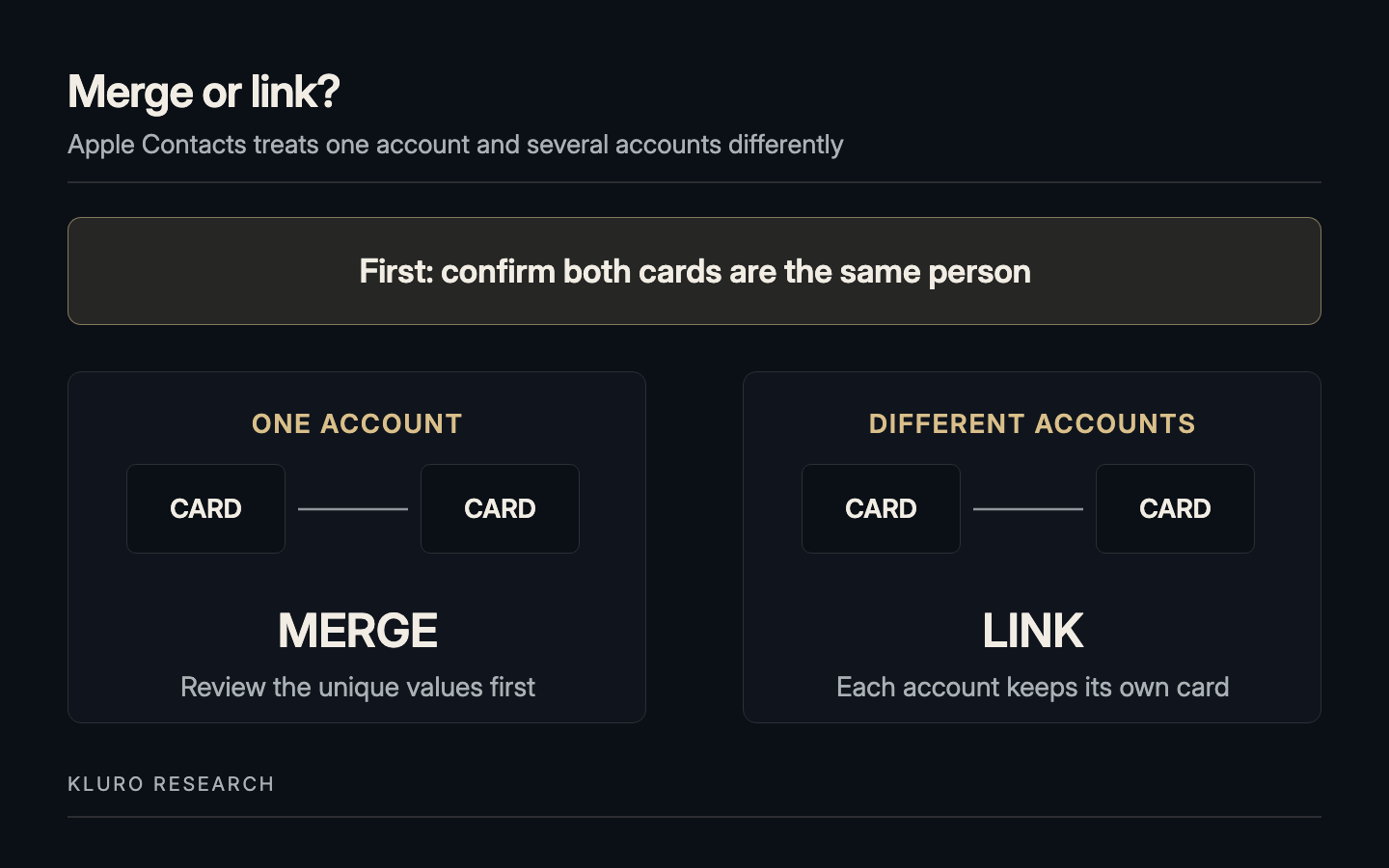
So do this in order. Confirm that the two cards are about the same person. Make a backup. Then merge the cards if they are duplicate records in one account, or link them if they are separate records that belong to different accounts.
Apple’s Contacts app treats those two situations differently. Same-account cards can be merged; cards from different accounts can be linked into a combined view while remaining separate in their original accounts. [1] [2] That is why “merge every duplicate the app detects” is too blunt an instruction.
Is this really the same person?
A matching name is only a starting point. Before you combine two cards, look for something firmer:
- The same email address on both cards, where you have verified that it belongs to this person.
- Confirmation from the person: they have told you both cards are theirs, or a verified message from them gives the new address.
Two things should make you stop. Different employers and different email addresses, with no evidence connecting the cards, may belong to two people who share a name. And a phone number that several people use, such as a family number, does not show that two cards are one person.
If you cannot tell, keep the cards separate until you can.
Five cards worth pausing over
The examples below are invented. They illustrate decisions a contact manager cannot safely settle from a display name alone.
| What you see | What you know | Sensible next step |
|---|---|---|
| Two Maya Patel cards in one account | Same verified email; one has a newer phone number she supplied | Review the values, preserve a backup, then consider merging |
| Two Alex Morgan cards | Different employers and emails; no evidence they are one person | Keep separate until identity is established |
| A personal and a work card for Sam | Sam confirmed both; cards belong to different accounts | Consider linking the display rather than moving account ownership |
| “Priya — old work” and “Priya” | A verified message confirms her new address | Preserve the old address as historical context where appropriate; review labels |
| A family card with a shared phone number | Several people use the number | Do not equate a shared number with one identity |
The decision sheet includes these cases and a blank review record. Use it to pause over an unclear pair. It is not a reason to collect more personal information about someone just to settle the question.
Make a restorable copy first
Before changing a large contact book, make a backup or export and check where it was saved. Apple documents a Contacts Archive for the full collection and vCard export for selected contacts. They do different jobs, so choose the one that fits what you are about to change, and do not assume the two files are interchangeable as backups. [3]
Keep that file somewhere private. A contact archive can contain more than phone numbers. If you are working with an employer’s account, use its approved process and tools.
Then try one clear-cut pair. A successful preview is not the same as knowing what will happen to every record, and a large batch is a poor place to learn how your setup handles conflicting fields.
Merge within an account
Apple’s documented Mac workflow offers Card → Look for Duplicates, as well as Card → Merge Selected Cards for cards you choose. A merge preserves unique information in the resulting card. [1]
“Unique” does not mean “current.” A phone number the merge preserved may be out of date. Check the labels and the details you intend to use before your next call or message.
Where two cards disagree on the same field, find out where each value came from. Recency helps, but a recent value you typed from memory can be less reliable than an older one the person confirmed.
If you cannot establish which record is correct, keep the uncertainty visible. A tidier list is not worth silently giving somebody the wrong employer or the wrong correspondence.
Link across accounts
Apple documents linking selected cards when one person has records in different accounts. The underlying cards remain while Contacts presents the combined information. [2]
Linking can clear up what you see without moving work-controlled data into a personal account. It does not, by itself, settle your organization’s policy, whether you may export the data, or how another app interprets the cards.
Check which account a card belongs to before editing a field. You may only want to tidy what you see on this Mac, but a change to a synced record can affect what is stored in that account. Read the control you are using, and do not assume that “one card on screen” means one storage location.
The precise labels can vary with the selected macOS guide and your account configuration. The linking source cited here is Apple’s macOS 26 documentation; we did not operate a real contact book as part of this article.
Review the import choices
When importing contacts, Apple offers choices about old and new records. An “apply to all” option saves clicks; it does not examine the relationship behind each match for you. [4]
Use a small sample when evaluating a new destination. Check a person with several addresses, a dated note and a group membership. Confirm that the result remains understandable. Our personal CRM export test provides a sample designed for that inspection.
After the cleanup
Cleaner contacts can give relationship tools better input, but cleanup should not rewrite history. An old conversation may correctly show someone’s former name, address or organization. You can leave that source as it is and still keep the current contact record clear.
Kluro brings conversations together around people and recognizes the same person across the apps you connect. Carry out the merge or link in Apple Contacts, with the account and identity checks above.
Afterward, open a few reviewed records from the account you intend to use. Check the address and the relevant note before relying on them. Leave an ambiguous pair separate and record what still needs confirmation.
Sources
- Merge contact cards in Contacts on Mac — Apple Support. Living documentation. Reviewed 29 September 2026.
- Link contacts in Contacts on Mac — Apple Support. Living documentation. Reviewed 29 September 2026.
- Export or archive contacts in Contacts on Mac — Apple Support. Living documentation. Reviewed 29 September 2026.
- Resolve duplicates while importing contacts — Apple Support. Living documentation. Reviewed 29 September 2026.